
KDP Rejecting Your EPUB? How to Find & Fix Errors

The good news is that most EPUB errors KDP flags are fixable
in under 30 minutes — if you know where to look.
Most indie authors only find out their EPUB has errors after KDP rejects it. By then, you've already wasted time waiting for the review. Here's how to catch and fix those errors before you upload - so your book goes live without the back-and-forth.
Why KDP Rejects EPUB Files
KDP runs every uploaded EPUB through its own validation system. If your file fails that check, you get a vague rejection email. Sometimes it tells you what's wrong. Often it doesn't.
The most common reasons KDP rejects an EPUB are broken internal links, missing metadata, malformed HTML inside the file, and incorrect file structure. None of these are obvious when you're looking at your manuscript in Word or Google Docs. They only show up when a validator actually opens the file and checks its guts.
So the fix is simple. Validate before you upload. Every time.
Step 1 - Validate Your EPUB File Before KDP Upload
Before fixing anything, you need to know what's actually broken. Guessing wastes time.
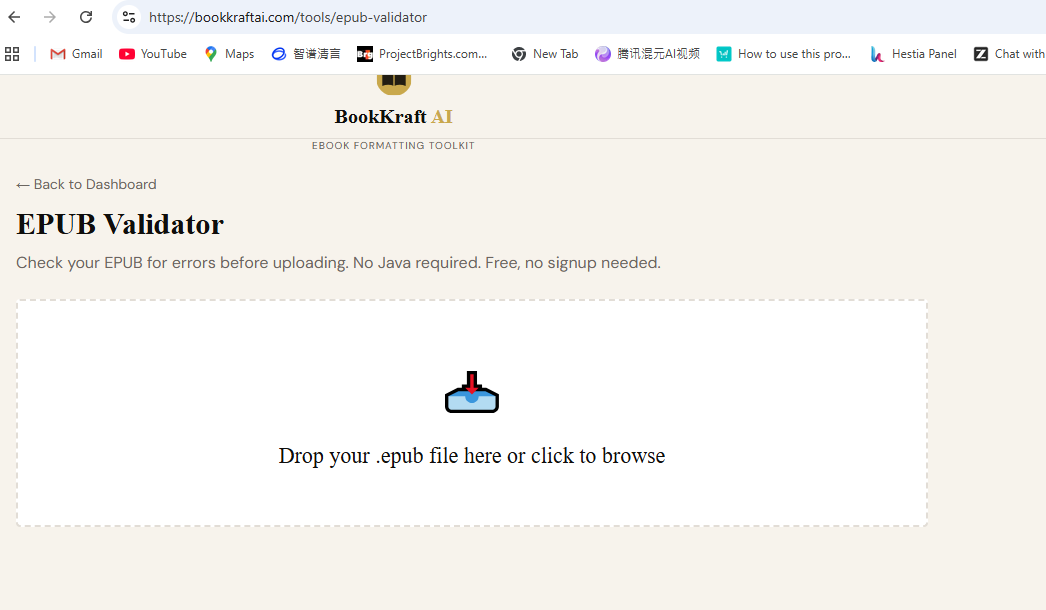
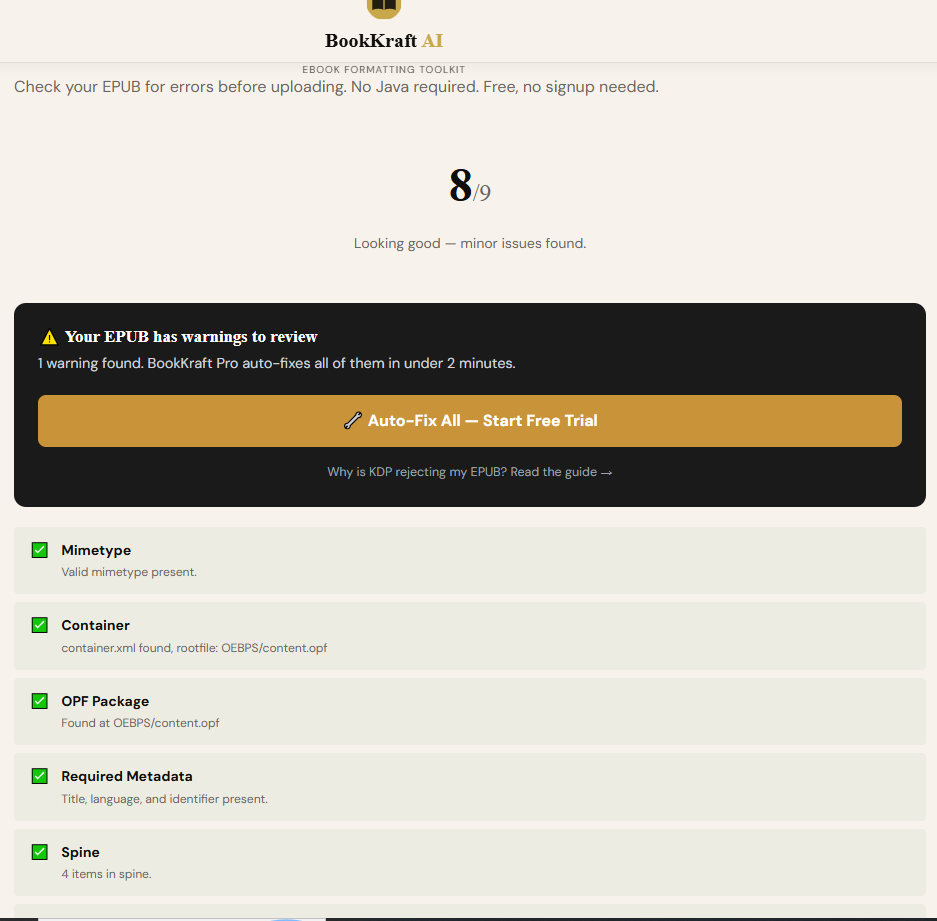
The fastest way is to use an online EPUB validator. BookKraft AI has a free one at bookkraftai.com/tools/epub-validator. Drop your file in, run a full check, and it shows you exactly which errors exist and where. No Java installation, no command line, no signup needed.
What the validator checks:
- File structure and packaging
- Required metadata fields
- Internal link integrity
- HTML validity inside each chapter file
- NCX and navigation document formatting
Run this first. Then work through the errors it finds.
Step 2 — Fix the Most Common KDP EPUB Errors
Once you have your error report, here's what each common error means and how to fix it.
Broken internal links This happens when your Table of Contents points to a chapter file that doesn't exist or was renamed. Open your EPUB with a tool like Sigil (free) and check that every TOC entry links to an actual file in your EPUB package. Delete any links pointing to nothing.
Missing or incomplete metadata KDP requires a title and language field in your EPUB metadata. If either is missing, the upload fails. In Sigil, go to Tools → Metadata Editor and make sure your title, author, and language are all filled in. Language should be a standard code like "en" for English.
Malformed HTML in chapter files This is the most common error from Word exports. When you copy text from Word into an EPUB, it often brings hidden formatting tags that aren't valid HTML. The fix is to paste your text into a plain text editor first, then bring it into your EPUB tool. That strips the bad formatting before it can cause problems.
Unclosed tags Every HTML tag that opens needs to close. A <p> needs a </p>. A <div> needs a </div>. Validators catch these automatically and tell you which file and line number has the problem. Fix them one by one in Sigil's code view.
Images not in the manifest If your EPUB includes images, every image file needs to be listed in the OPF manifest. If you added an image to a chapter but forgot to add it to the manifest, the validator flags it. In Sigil, right-click your Images folder and use "Add Existing Files" to make sure everything is properly included.
Step 3 — Fix Formatting Issues That Pass Validation But Still Cause Problems
Some issues won't get flagged by a validator but will still make your book look broken on Kindle devices.
Smart quotes and em dashes Word exports often produce encoding artifacts — you'll see things like ’ instead of an apostrophe. These display as gibberish on Kindle. Use BookKraft AI's Kindle Format Fixer to catch and fix these before you build your EPUB.
Double spaces Kindle renders double spaces inconsistently across devices. Run a find-and-replace in your manuscript before formatting. Search for two spaces, replace with one. Do this repeatedly until no double spaces remain.
Tab indents Kindle doesn't handle tab characters well. Replace all tab indents with CSS paragraph indentation in your stylesheet instead. This gives you consistent, clean indentation across all Kindle devices.
Fixed-width tables Tables that look perfect on your screen often break on small Kindle screens. Either simplify your tables, convert them to images, or use responsive CSS. Fixed pixel widths are the main culprit — avoid them.
Step 4 — Check Your EPUB on an Actual Kindle Device
Validation tells you your file is technically correct. It doesn't tell you it looks good.
Download the free Kindle Previewer tool from Amazon's KDP website. Open your validated EPUB in it and flip through every chapter. Check how chapter headings look, whether images are sized correctly, and whether your Table of Contents links work properly.
Pay special attention to the first page of each chapter. That's what readers see when they open your book. If the formatting looks off there, fix it before uploading.
Step 5 — Do a Final Check Before Every Upload
Make this your standard process for every book:
- Export your manuscript from Word or Google Docs
- Run it through Kindle Format Fixer to clean encoding errors
- Build your EPUB using your formatting tool
- Validate the EPUB at bookkraftai.com/tools/epub-validator
- Open the validated file in Kindle Previewer
- Fix anything the previewer shows
- Upload to KDP
This takes maybe 20 extra minutes. It saves you days of rejection emails and re-uploads.
The One Tool That Catches Everything Else
Even after fixing all the above, some issues only show up after KDP processes your file. The best way to reduce that risk is to use a proper EPUB building tool rather than converting from Word directly.
BookKraft AI's EPUB Formatter builds a clean EPUB 3.0 file from your manuscript. It handles chapter structure, metadata, and cover image automatically. Files built this way pass KDP validation far more consistently than Word conversions.
Quick Reference — EPUB Errors and Fixes
| Error | Cause | Fix |
|---|---|---|
| Broken TOC links | Renamed or missing chapter files | Update links in Sigil |
| Missing metadata | Empty title or language field | Add in Metadata Editor |
| Malformed HTML | Word export artifacts | Paste as plain text first |
| Encoding artifacts | Smart quotes from Word | Run Kindle Format Fixer |
| Images not found | Not added to manifest | Add via Sigil Images folder |
| Fixed-width tables | Pixel-based table CSS | Use responsive CSS or images |
Final Thought
KDP rejection doesn't mean your book is broken beyond repair. It usually means one or two fixable issues slipped through. The key is catching them yourself before KDP does - with a validator, a previewer, and a consistent process.
Run the free EPUB validator at bookkraftai.com/tools/epub-validator
before your next KDP upload.
Have a specific EPUB error you can't figure out? Drop it in the comments and we'll help you fix it.
Member discussion